
Connecting a smartwatch to your smartphone should be simple, yet many users struggle with pairing issues, missing notifications, or Bluetooth errors. This guide walks you through how to connect any smartwatch to Android or iPhone, common mistakes to avoid, and how apps like HiWatch help keep your device synced smoothly.
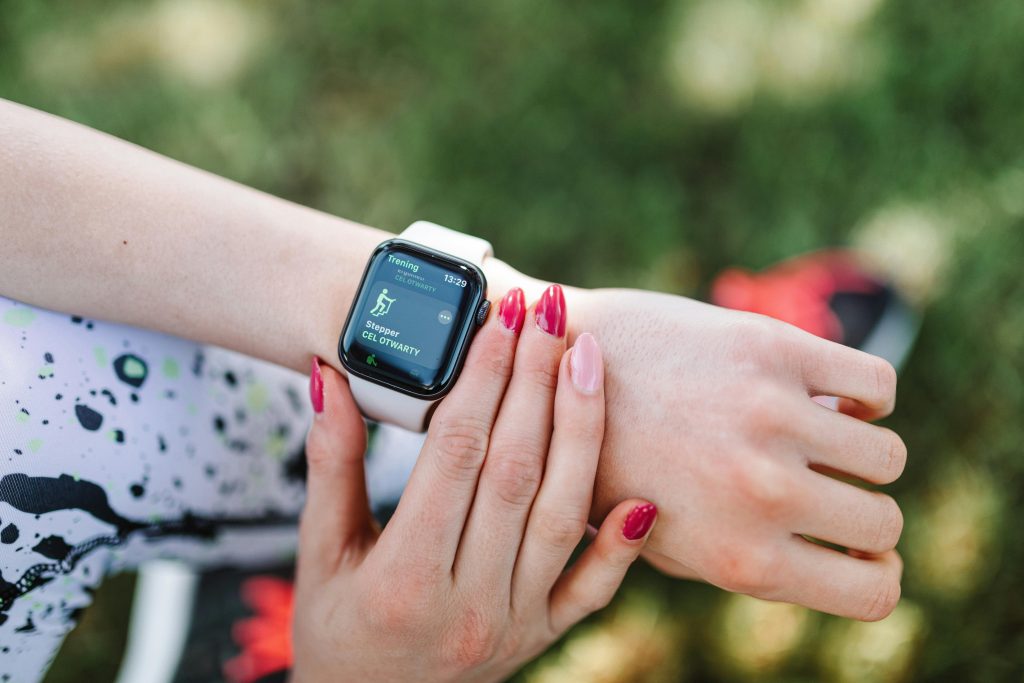
1. Prepare Your Watch and Phone Before Pairing
Before you start connecting your device, make sure:
✓ Your smartwatch is fully charged
Low battery can interrupt Bluetooth pairing.
✓ Bluetooth is turned on
On both Android and iPhone, toggle Bluetooth off → on before starting the process.
✓ The smartwatch is not already connected to another device
Many smartwatches only support one active connection at a time.
If previously paired to another phone, unpair it.
✓ Install the correct companion app
Most generic or third-party smartwatches require a dedicated app—such as HiWatch, which supports Bluetooth smartwatches that track steps, heart rate, sleep, and notifications.
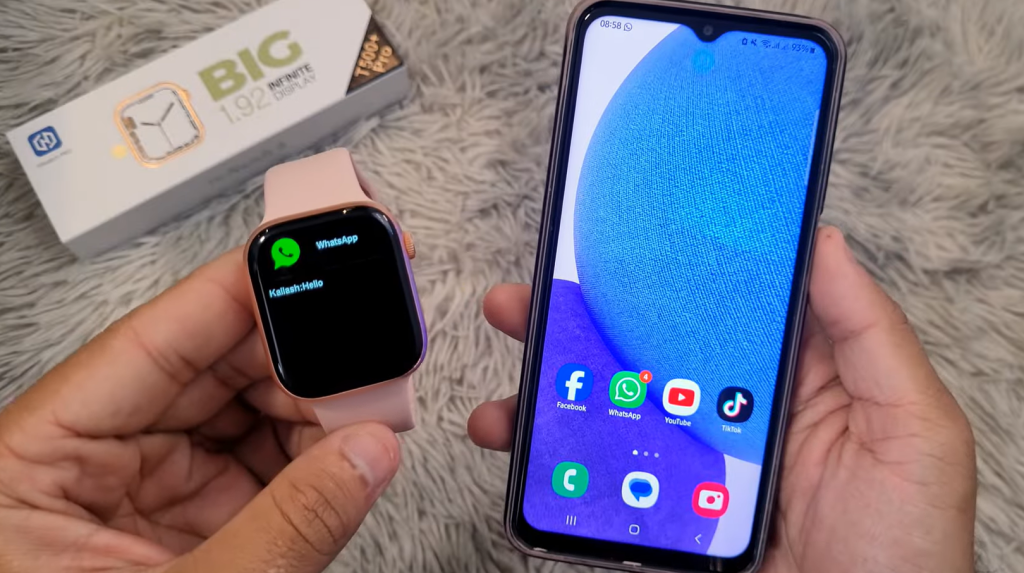
2. How to Connect a Smartwatch to an Android Phone
Follow these steps:
Step 1: Install the companion app
Go to Google Play Store → search for your watch’s app.
For supported devices, you can download HiWatch to sync health tracking, notifications, and GPS routes.
Step 2: Enable Bluetooth & Location Services
Android requires both for successful scanning.
Step 3: Open your app → tap “Add Device” or “Pair New Device”
Your watch should appear as a device ID (e.g., “SmartWatch_56A9”).
Step 4: Confirm pairing request
Most watches will show a 6-digit confirmation code.
Step 5: Allow notifications
Apps like HiWatch will request access to:
- Calls
- Messages
- App notifications
- Calendar alerts
Granting these allows full smartwatch features.
3. How to Connect a Smartwatch to an iPhone
iOS is strict about Bluetooth permissions, so follow this order:
Step 1: Install the companion app from the App Store
(HiWatch also supports iPhone pairing for compatible Bluetooth watches.)
Step 2: DO NOT pair via iPhone’s Settings → Bluetooth
This is the #1 mistake iPhone users make.
Instead, always pair inside the app.
Step 3: Open the app → tap “Connect Device”
Allow the app to search for nearby watches.
Step 4: Approve the Bluetooth Pairing Request popup
Tap “Pair.”
Step 5: Enable background refresh
iPhone aggressively stops apps from running in the background.
Go to:
Settings → HiWatch → Background App Refresh → On
This ensures steps, heart rate, and messages sync properly.
4. Common Mistakes That Cause Pairing Failures
If your device won’t connect, check these:
❌ Pairing through system Bluetooth
Always connect inside the smartwatch app, not through Settings.
❌ Watch paired with an old phone
Disconnect it first.
❌ Missing app permissions
Notifications & location must be enabled for stable connection.
❌ Using outdated firmware
Some watches won’t pair until updated.
5. How HiWatch Simplifies Smartwatch Pairing
HiWatch is designed to make smartwatch pairing easier with:
- One-tap device scanning
- Automatic Bluetooth reconnection
- Push notification sync
- Real-time step, heart rate & sleep tracking
- Remote camera shutter control
- GPS routing powered by Google Maps
If your watch supports HiWatch, pairing becomes significantly more stable.
6. Troubleshooting: What to Do If Your Watch Still Won’t Pair
Try these steps:
Fix 1: Restart both devices
Watch off → on
Phone restart → open app → retry pairing
Fix 2: Reset Bluetooth service
Android: Toggle Bluetooth → Clear cache
iPhone: Reset Network Settings
Fix 3: Reinstall your smartwatch app
Fix 4: Factory reset the watch
Use only as last resort.

⭐ Conclusion
Pairing a smartwatch may seem confusing, but following the correct steps—especially pairing inside the app—fixes 90% of issues. For compatible Bluetooth smartwatches, apps like HiWatch offer an easy way to connect and manage notifications, fitness metrics, and routes.
For the best results and official app downloads, always use:
👉 https://hiwatch.app/
