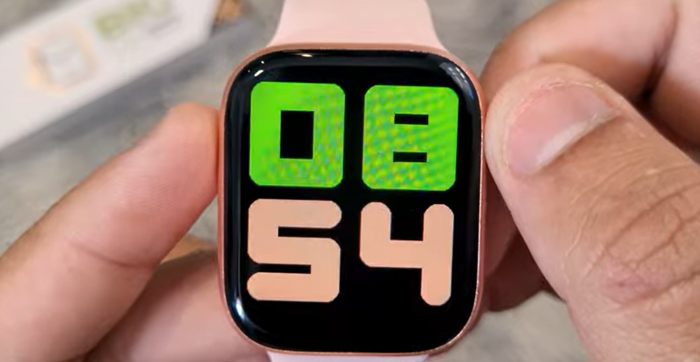
Smartwatches like HiWatch, HiWatch Pro, and HiWatch Plus rely on Bluetooth syncing to deliver real-time steps, heart rate, notifications, and health data.
But one of the most common user problems is:
“My HiWatch / HiWatch Pro won’t connect to my phone.”
If your watch fails to pair, won’t sync data, keeps disconnecting, or doesn’t show up in Bluetooth settings, don’t worry—you’re not alone. This detailed 2025 troubleshooting guide will walk you through every proven solution for both Android and iPhone users.
⭐ Table of Contents
- What Causes HiWatch Not Connecting?
- Before You Start: Quick Checklist
- How to Download the HiWatch App Properly
- How to Connect HiWatch on Android
- How to Connect HiWatch on iPhone
- Fix HiWatch Not Showing Up in Bluetooth
- Fix HiWatch Pro Disconnecting Randomly
- Reset & Re-Pair Your Smartwatch
- Firmware Update Guide
- When Nothing Works
- Final Tips to Keep Connection Stable
1. What Causes HiWatch / HiWatch Pro Not Connecting?
There are several potential causes:
- Bluetooth permission not enabled
- Watch already paired to another device
- App installed incorrectly
- Wrong “time zone” or “location permission”
- Phone’s Bluetooth cache issues
- Battery saver interrupting connection
- Outdated firmware
- Too many devices stored in your phone’s Bluetooth history
Many new users think their watch is broken, but 95% of issues can be fixed with simple settings.
2. Before You Start: Quick Checklist
Before diving into advanced fixes, confirm the basics:
Make sure:
- Bluetooth is ON
- Watch is at least 30% charged
- Phone is within 1 meter of the watch
- You are connecting inside the HiWatch app, not only through the phone’s Bluetooth page
- The watch is not paired to another phone
- The HiWatch app has Location + Bluetooth + Notification permissions
If all these are fine, start the connection steps below.
3. How to Download the HiWatch App Properly
Incorrect app installation often causes connection failures.
✔ Recommended (official download):
👉 https://hiwatch.app/
(This avoids fake apps, wrong versions, and malware.)
Install the correct app:
- HiWatch / HiWatch Pro → “HiWatch” official app
- HiWatch Plus → branded variant compatible with your device
4. How to Connect HiWatch on Android

Follow these steps:
Go to:
Settings → Apps → HiWatch → Permissions
Enable:
- Bluetooth
- Nearby Devices
- Location
- Notifications
- Background activity
If Location permission is off, Android will NOT allow Bluetooth scanning.
Step 2 — Turn Off Battery Optimization
Android often kills smartwatch apps.
Go to:
Settings → Battery → App battery management → HiWatch → Allow background activity
Step 3 — Connect Through the HiWatch App
Do NOT pair through Bluetooth settings first.
Open:
HiWatch App → Device → Add Device → Search
Select your watch model:
- HiWatch
- HiWatch Pro
- HiWatch Plus
When a pairing request appears, tap Pair / Allow / OK.
Step 4 — If It Still Fails
Try clearing Bluetooth cache:
Go to:
Settings → Apps → Show system apps → Bluetooth → Storage → Clear Cache
Reboot your phone.
5. How to Connect HiWatch on iPhone
iOS normally pairs smoothly. If it doesn’t:
Step 1 — Enable Bluetooth, Wi-Fi, and Background App Refresh
Go to:
Settings → General → Background App Refresh → ON
HiWatch relies on this for syncing.
Step 2 — Allow Permissions
Settings → HiWatch → Enable:
- Bluetooth
- Location
- Notifications
- Mobile Data
Step 3 — Connect via App
Open:
HiWatch App → Device → Add Device
Select your watch when it appears.
Step 4 — Fix iPhone Not Showing the Watch
Go to:
Settings → Bluetooth → Forget All Old Smartwatch Devices
Reboot your iPhone.
6. Fix HiWatch Not Showing Up in Bluetooth
If your watch does not appear when scanning…
Try:
✔ A. Restart the Watch
Long press power → Restart.
✔ B. Restart Phone
Simple but effective.
✔ C. Reset Bluetooth (Android Only)
Settings → System → Reset Options → Reset Wi-Fi, Mobile & Bluetooth
✔ D. Turn On Location Permission
Required for scanning devices.
✔ E. Remove Distance
Place the watch right beside the phone.
7. Fix HiWatch Pro Disconnecting Randomly
If the watch keeps disconnecting:
✔ Tip 1 — Lock the App in Background (Android)
Swipe up → Hold HiWatch → Lock icon (prevent closing).
✔ Tip 2 — Avoid Using Battery Saver
Battery saver cuts Bluetooth automatically.
✔ Tip 3 — Keep App Updated
Outdated versions cause unstable pairing:
👉 https://hiwatch.app/
8. Reset & Re-Pair Your Smartwatch

When all fails, reset the watch:
On the watch:
Settings → Reset → Confirm
Then:
- Turn off Bluetooth on your phone
- Forget the watch in Bluetooth list
- Re-open the HiWatch app
- Re-pair again
This solves 80% of pairing issues.
9. Firmware Update Guide
Outdated firmware can break Bluetooth.
In the HiWatch App:
Device → Firmware Update → Download & Install
Do not turn off your watch or phone during updates.
10. When Nothing Works
If you’ve tried everything:
✔ Check if your smartwatch is a clone version
Some sellers distribute modified firmware versions.
✔ Try a different phone
If it connects on another device → your phone’s Bluetooth stack is the issue.
✔ Contact the seller
Or return/exchange the device.
11. Final Tips to Keep Connection Stable
- Keep your phone’s Bluetooth ON
- Allow HiWatch to run in background
- Disable battery saver
- Update firmware regularly
- Restart your phone weekly
- Keep the watch within 10 meters
- Avoid connecting too many Bluetooth devices at once
🎉 Conclusion
Most HiWatch / HiWatch Pro connection issues are caused by permissions, Bluetooth cache, or background restrictions.
By following this guide carefully, 99% of users will successfully pair and sync their smartwatch.
For the best results and official app downloads, always use:
👉 https://hiwatch.app/